About the Measurement Input Screen Features
The following calculations are available:
- Addition and subtraction
- Diagonal pipe length calculation (⊿ button)
Calculation results are saved as history, so you can recall the same formula and result at any time.
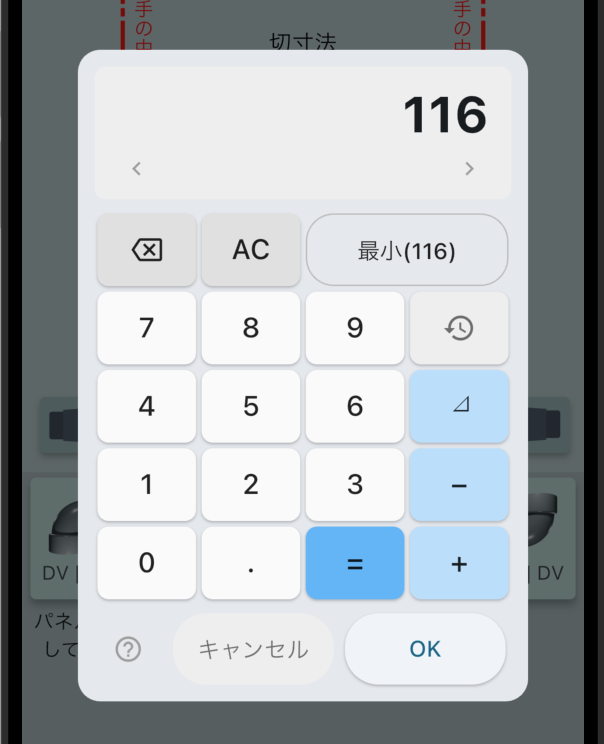
🔒 Note: The addition/subtraction and ⊿ (hypotenuse) calculation features require the Pro version or feature unlock via points. If you are using the free version, please check the unlock procedure. In the free version, history shows only the most recent 3 entries.

Calculation Features
Addition and Subtraction
The measurement input dialog has a + button and a − button, so you can add and subtract multiple dimensions to arrive at the final value. There is no need to jot down notes and do mental arithmetic each time.
💡 Example: Adding three dimensions to get the total
When the pipe length required between fittings is split across three sections:
850 + 1200 + 670 = → 2720 mmSubtraction can be used in the same formula as well:
2000 − 350 − 280 = → 1370 mmDiagonal Pipe Length Calculation (⊿ Button)
The measurement input dialog includes a ⊿ (hypotenuse) button. Simply enter the horizontal and vertical dimensions, and the actual length (hypotenuse) of the diagonal pipe is calculated on the spot.
📍 The ⊿ button (hypotenuse key) is located at the right end of the “4・5・6・⊿” row in the dialog.
It automatically calculates the hypotenuse length from the base and height of a right triangle.
How the Calculation Works
Hypotenuse = √( Base² + Height² )
Calculation based on the Pythagorean theorem
Operating Procedure
- Open the measurement value input dialog.
- Enter the length of the base (horizontal distance) using the number keys.
- Tap the ⊿ button.
- Enter the height (vertical distance).
- Press = or OK to confirm the hypotenuse length.
Calculation Examples
💡 Diagonal pipe of 200 mm horizontal × 150 mm vertical
Input operation:
200 ⊿ 150 =✅ Result: 250 mm
√(200² + 150²) = √62500 = 250
Combine with Addition/Subtraction in a Single Formula
⊿ can be combined with + and − in a single formula. Moreover, “the addition/subtraction before and after ⊿ is calculated first,” so you can simply enter the measured values as-is without any intermediate calculation.
💡 Example: Measuring two pipes from the wall to determine the diagonal pipe length
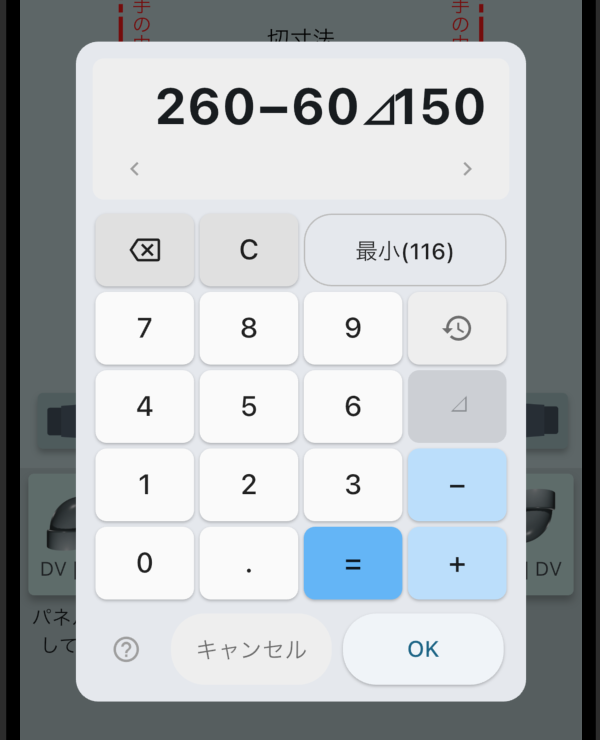
From the wall to existing pipe A is measured at 260 mm, and from the wall to new pipe B at 60 mm. The vertical difference is 150 mm.
The horizontal distance between the two pipes is 260 − 60 = 200 mm, but this calculation can also be included in the formula.
Conventional procedure (2 steps):
- Calculate the horizontal distance: 260 − 60 = 200
- Calculate the hypotenuse: 200 ⊿ 150 = 250
Where It Comes in Handy
- Calculating the actual length of a diagonal pipe that avoids a step
- Taking dimensions for diagonal routing in ceilings or under floors
- Calculating cut dimensions for offset pipes
- Installation locations involving diagonal distances such as exterior wall penetrations
History of Calculation Process and Results
Tap the History button (clock icon) in the dialog to display a list of past confirmed calculations. The entered formulas and results are recorded with date and time, so you can quickly recall the same dimensions whenever you need them.
📍 The History button is located at the right end of the “7・8・9・History” row.
How to View and Use History
Each history entry shows the date/time, formula, and result.
- Tap the formula (underlined) → The formula is restored to the dialog as-is. Useful when you want to modify it and recalculate.
- Tap the result (underlined number) → Only that value is input into the dialog.
Editing Mid-Formula with < and > Buttons
You can edit the entered formula mid-way by moving the cursor left and right with the < and > buttons below the display area. You don’t have to re-enter the whole formula—you can just fix the part you mistyped.
- < button: Move the cursor one character to the left
- > button: Move the cursor one character to the right
- When you enter a digit or operator after moving the cursor, it is inserted at that position
- Backspace (<erase) deletes one character immediately before the cursor
💡 Tip: Combined with the History button, you can quickly modify past formulas as well.