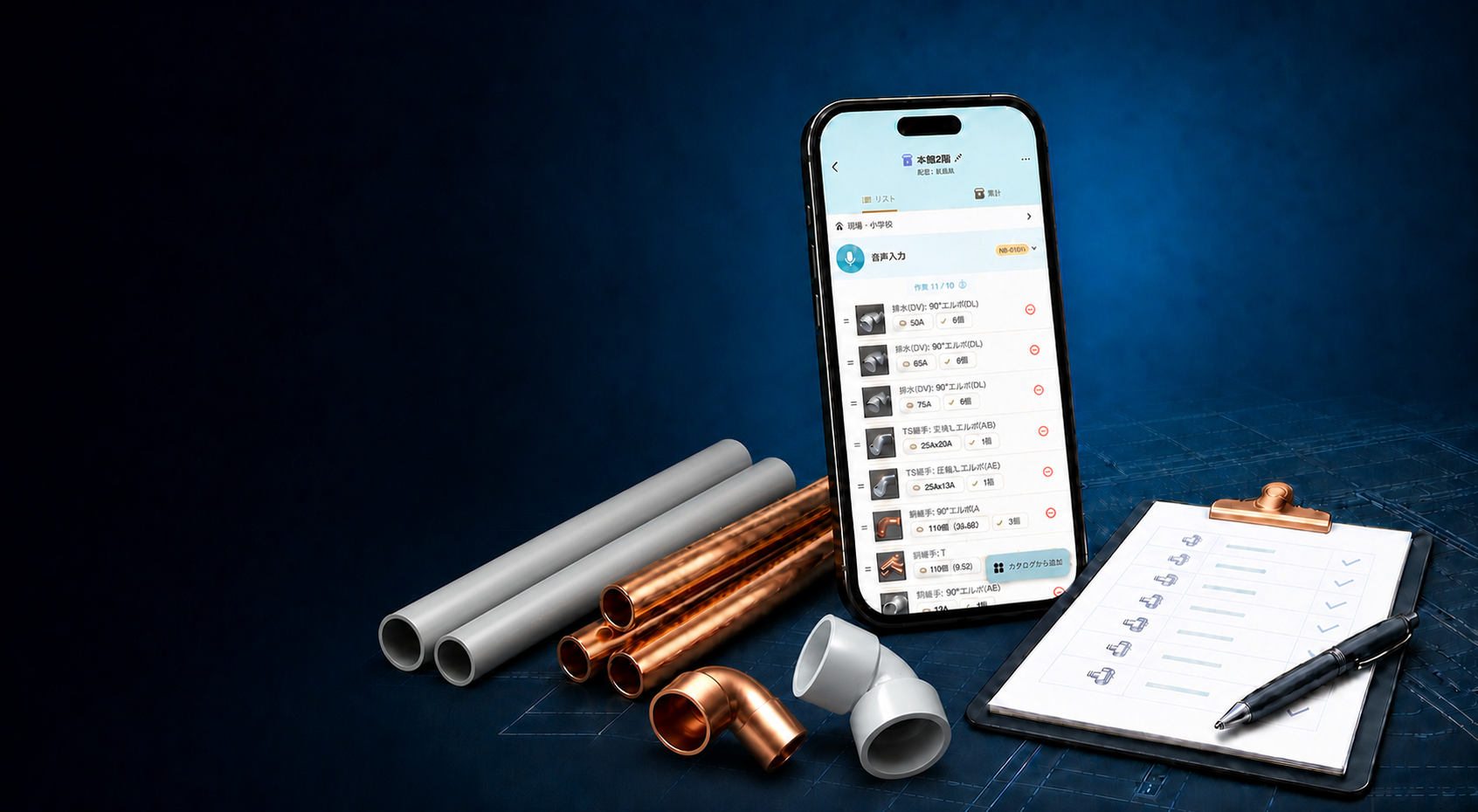
配管Pipit(Haikan Pipit) includes a material takeoff feature that lets you organize required materials into lists and manage them by site. This guide explains the basic workflow for checking quantities, sharing lists, and keeping a backup.
Basic Material Takeoff Workflow
- Create a takeoff list
- Add the materials you need
- Organize the list by site
- Export the list to share or save it
1. Start a Material Takeoff
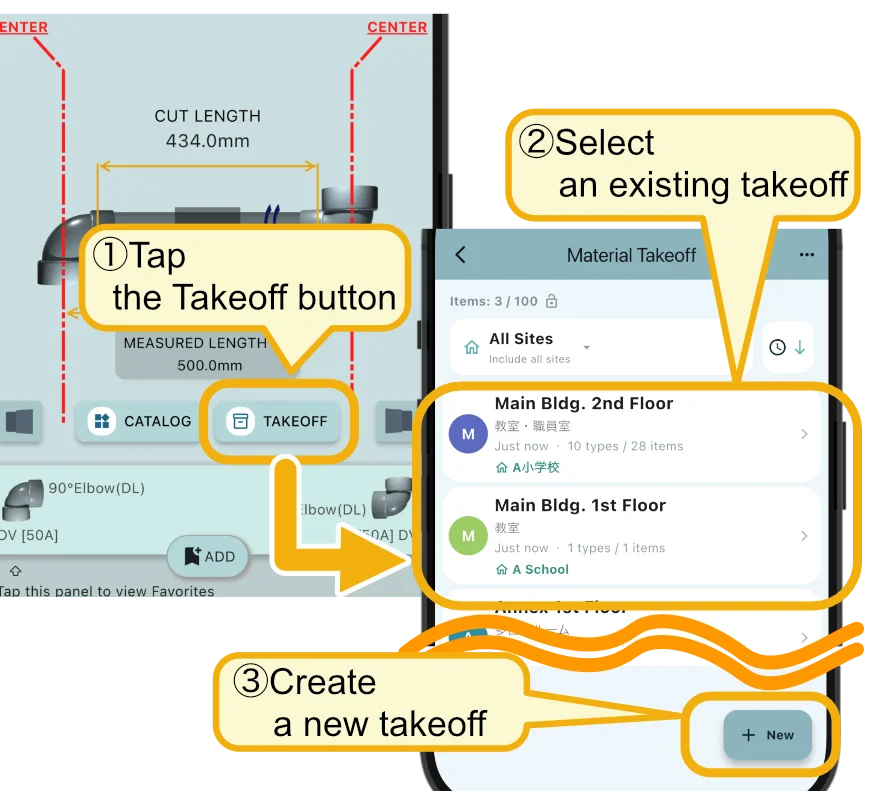
Tap Takeoff on the main screen to begin. Create a new takeoff list, or select a saved list to continue working on it.
2. Add Materials to the List
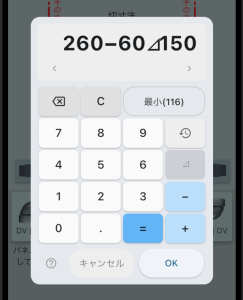
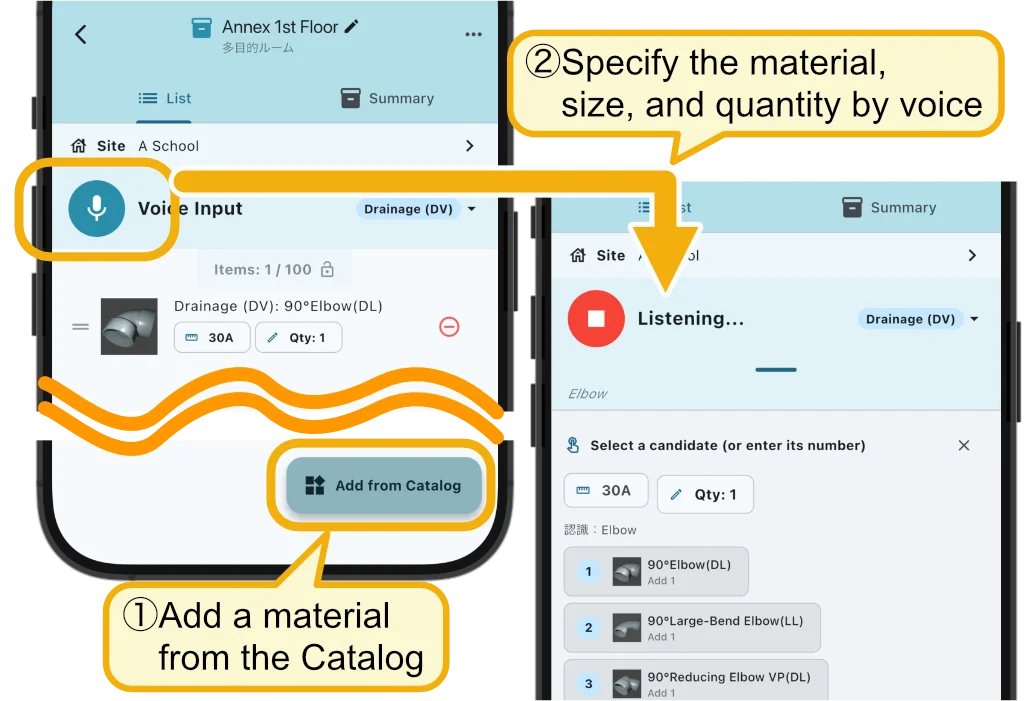
You can add materials from the dimensional table on the Catalog screen. Select the fitting type, nominal diameter, and quantity. Voice input is also available: for example, say “DV, 90-degree elbow 50A, 3 pieces.”
Finding a Fitting in the Catalog
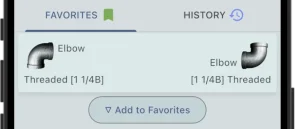
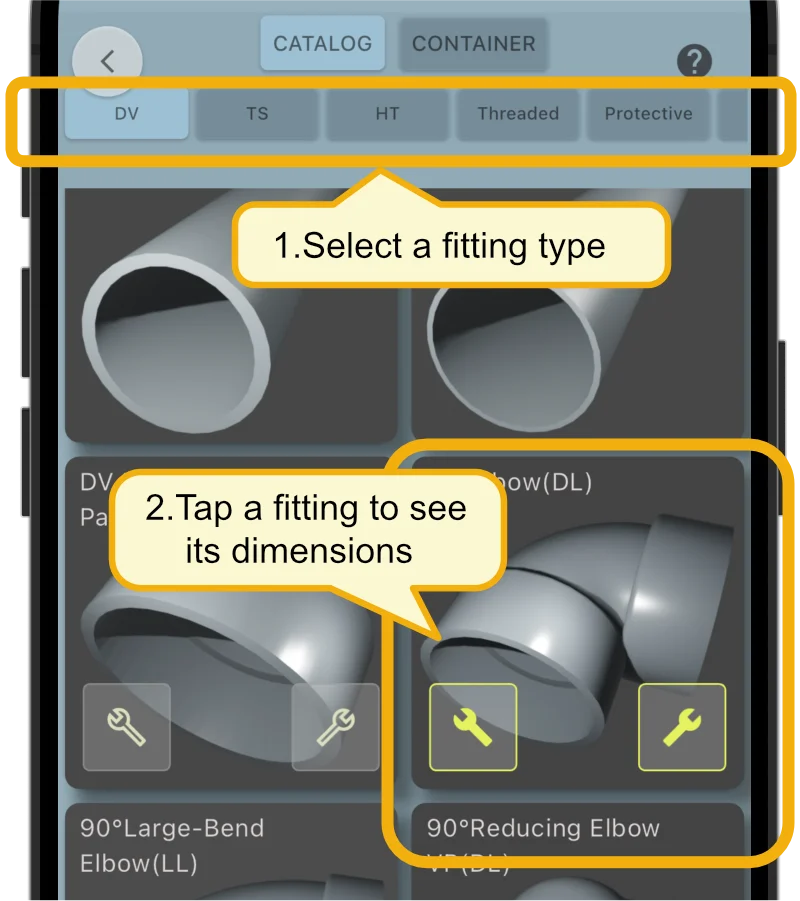
If you are not sure where a fitting is located, open the Catalog and select the fitting type first. You can check its dimensions and shape before adding it to the takeoff list.
3. Set and Filter by Site
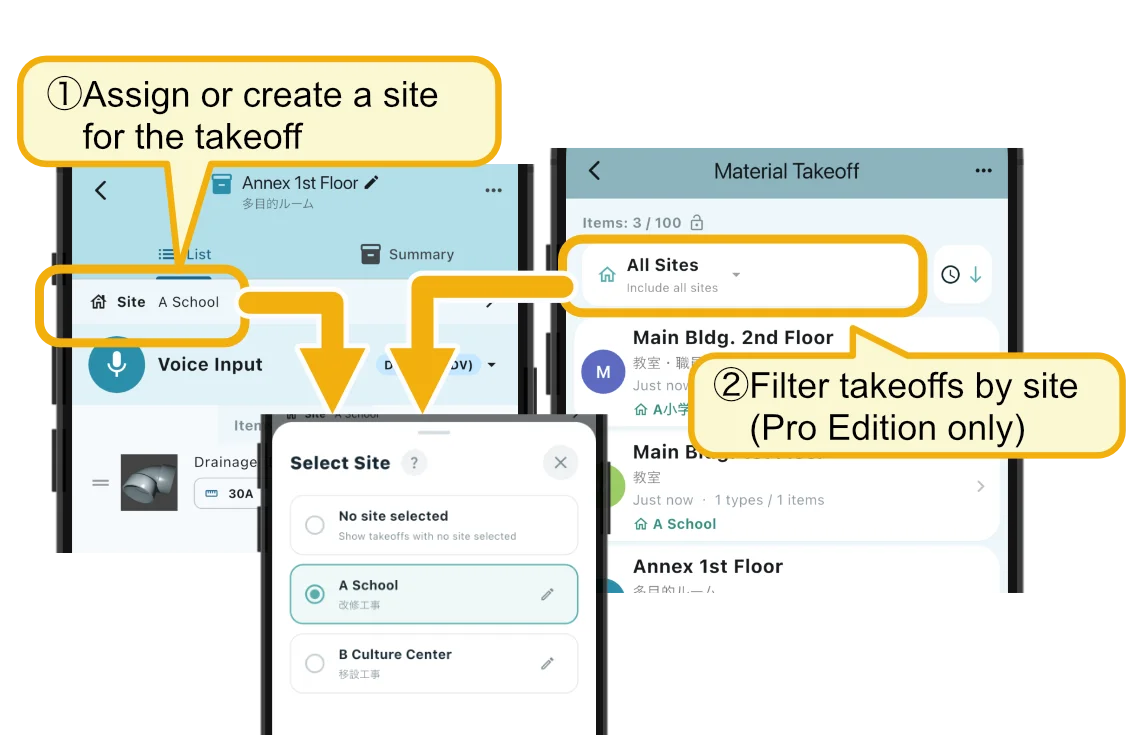
You can assign a site to each takeoff list. Create a new site or select an existing one. When you have multiple projects, filter the takeoff list by site to quickly find the list you need. Site filtering is available with the Pro version; the free version always shows all sites.
4. Export and Import
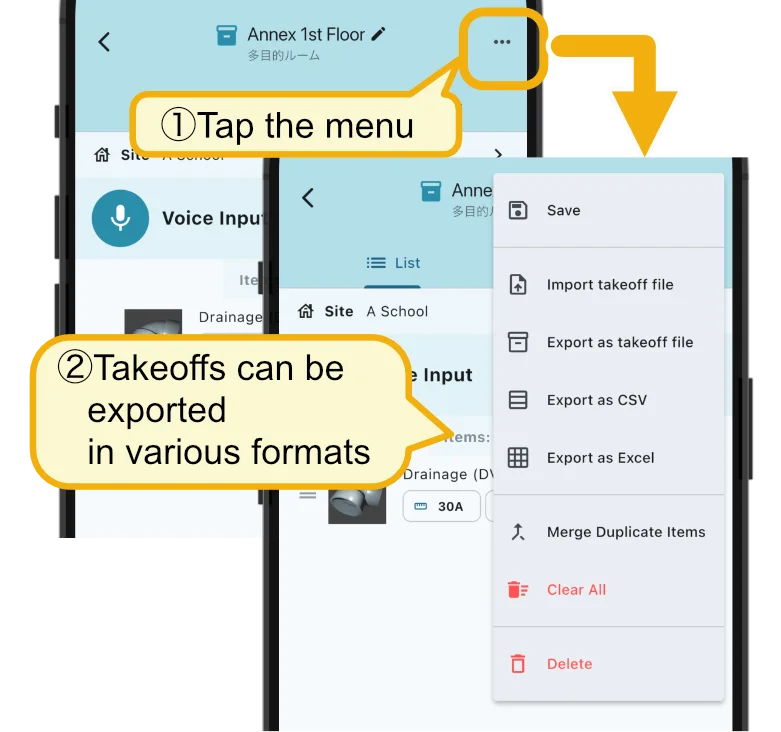
Completed takeoff lists can be exported and imported as takeoff files. Use them to share a list with another user, back up your data, or copy items between takeoff lists. CSV and Excel files can be exported and opened in other apps or on a computer.
Summary
With four simple steps—create, add, organize, and share—you can manage material quantities more smoothly. Use the feature to confirm the materials needed on site and share takeoff lists with your team.